

Publy Logo
Publy Logo

How to connect Ugoos X4Q to Wifi

Publisert: 16th December 2025 (Oppdatert: 16th December 2025)

Android

Hardware

Startup

This guide will help you connect the Ugoos X4Q to your Wi-Fi network. Follow the steps below:

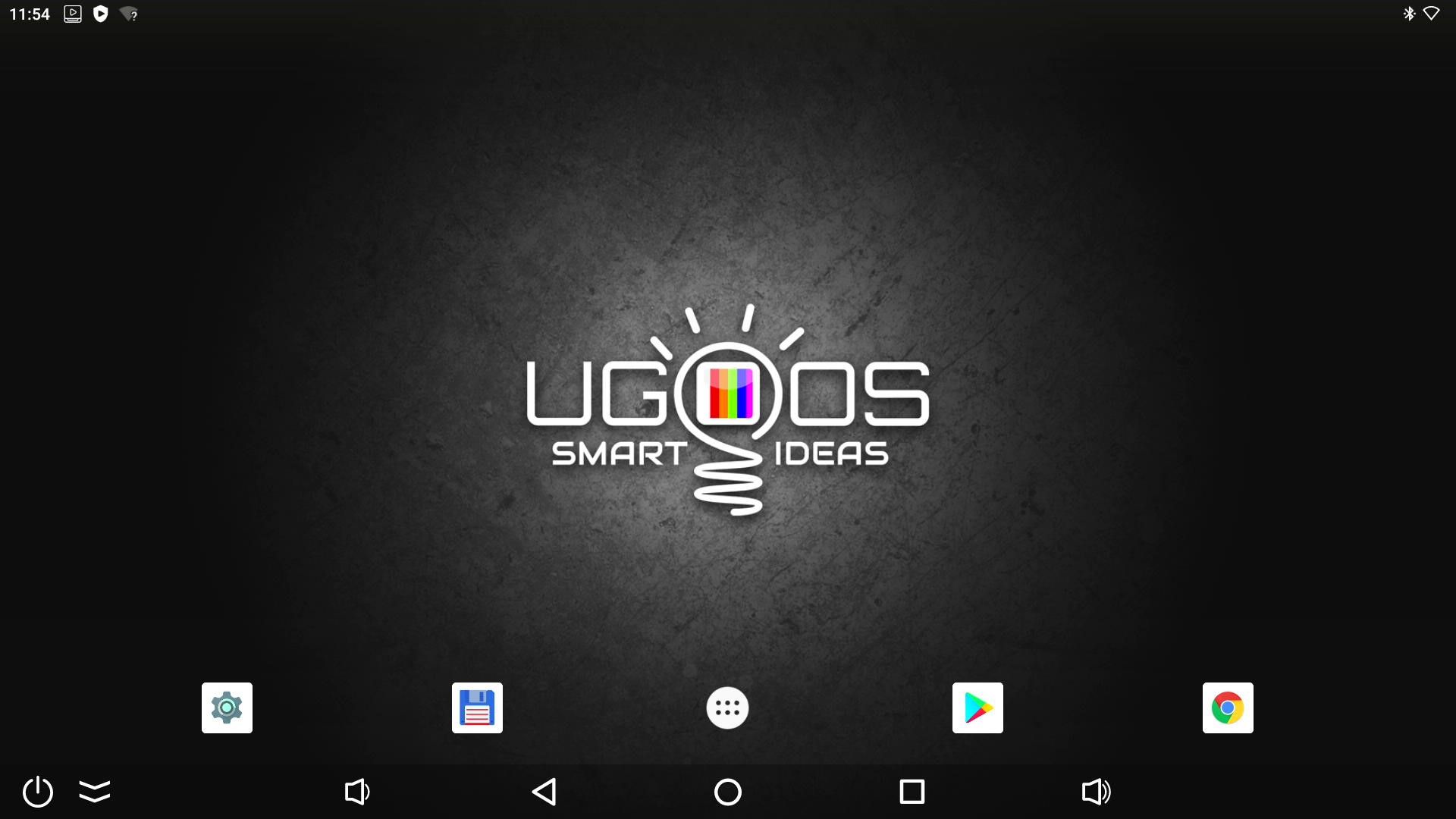
  1. Go to the Home screen

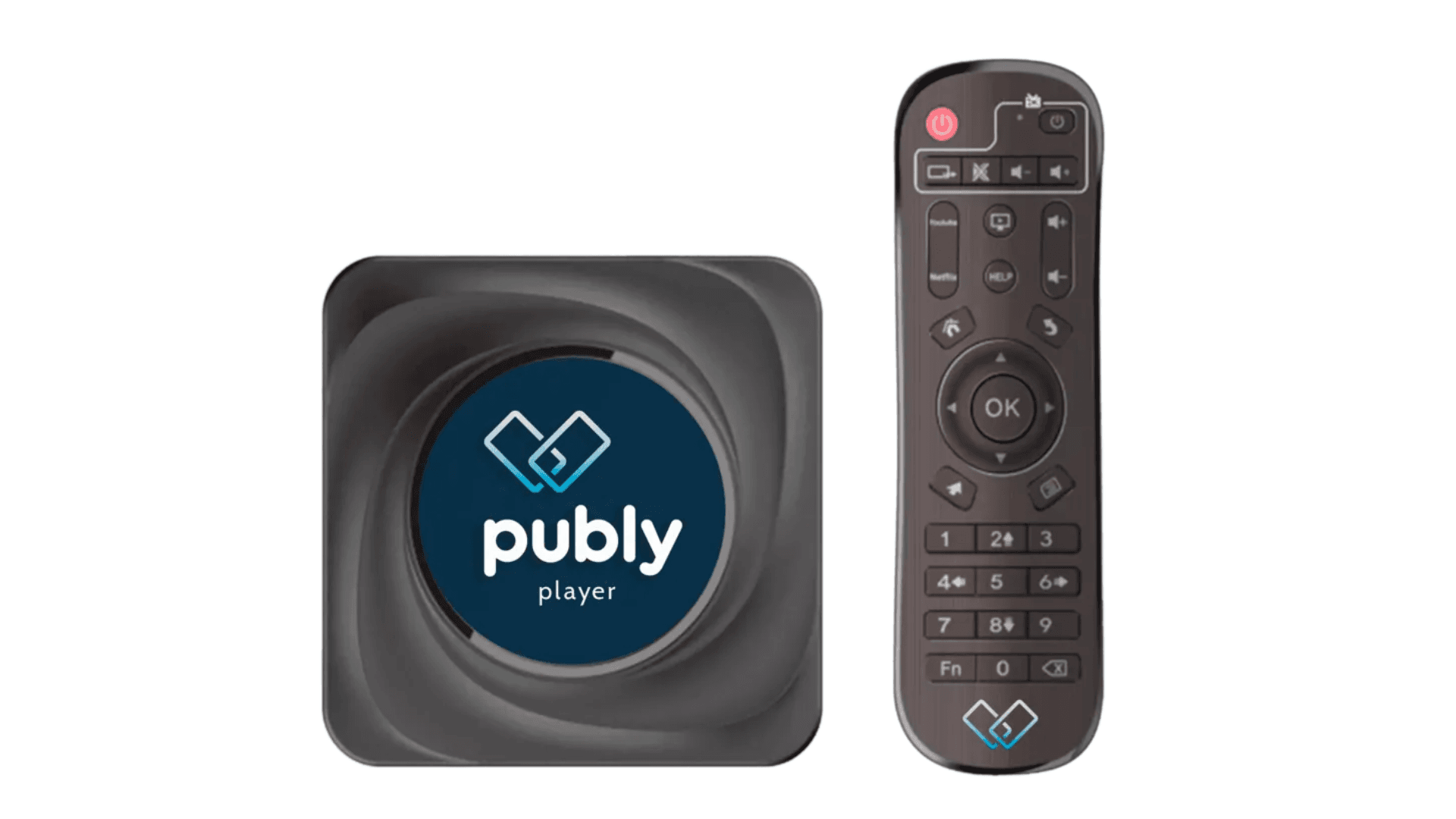
    • Press the Home button on the remote control to navigate to the home screen.

WIN_20241206_12_54_06_Pro.jpg

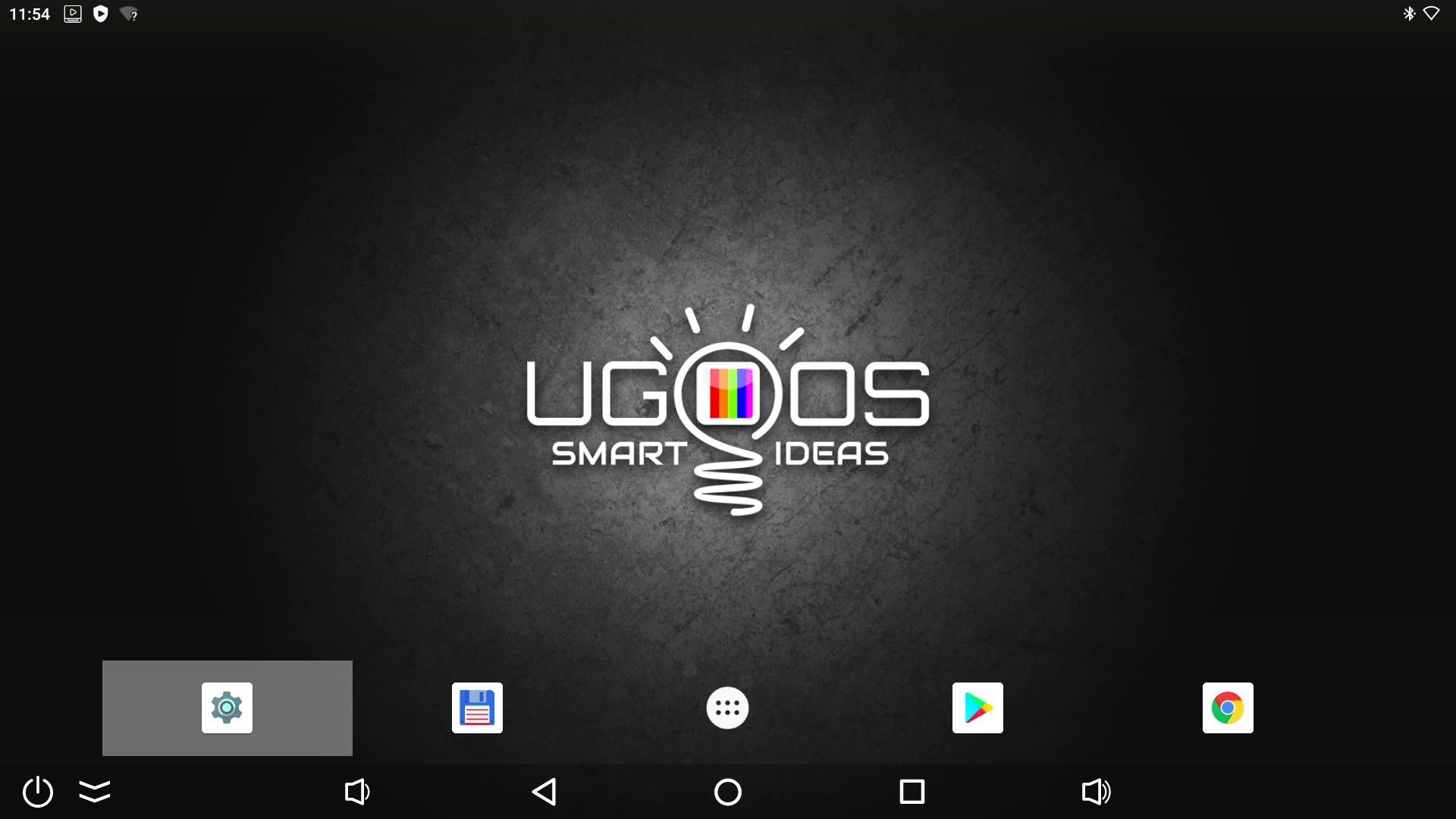
2. Open Settings

  • Scroll down to the "Settings" icon and select it by pressing OK.

WIN_20241206_12_54_11_Pro.jpg

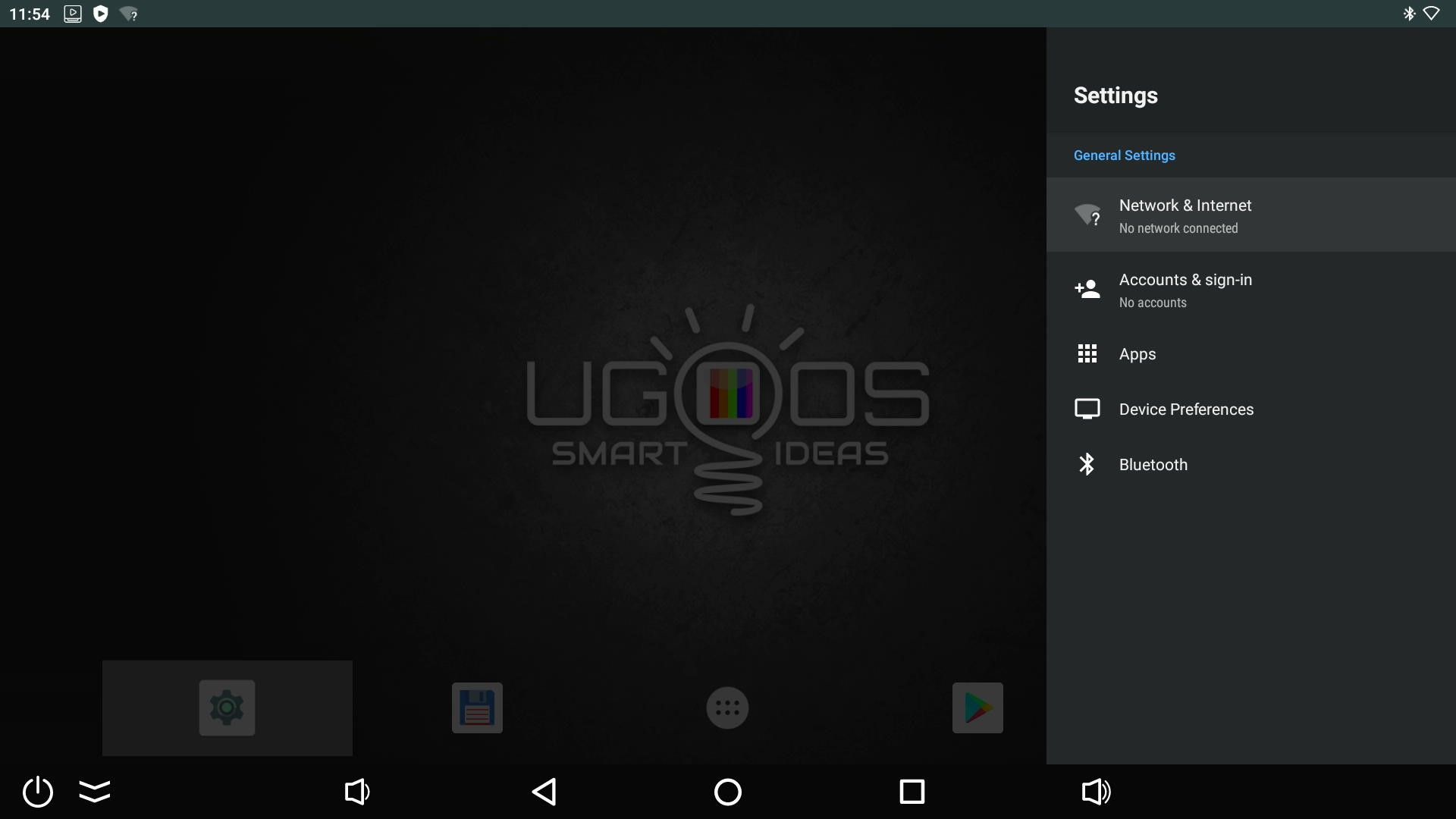
3. Go to Network settings

  • Select "Network & Internet" from the menu.

WIN_20241206_12_54_15_Pro.jpg

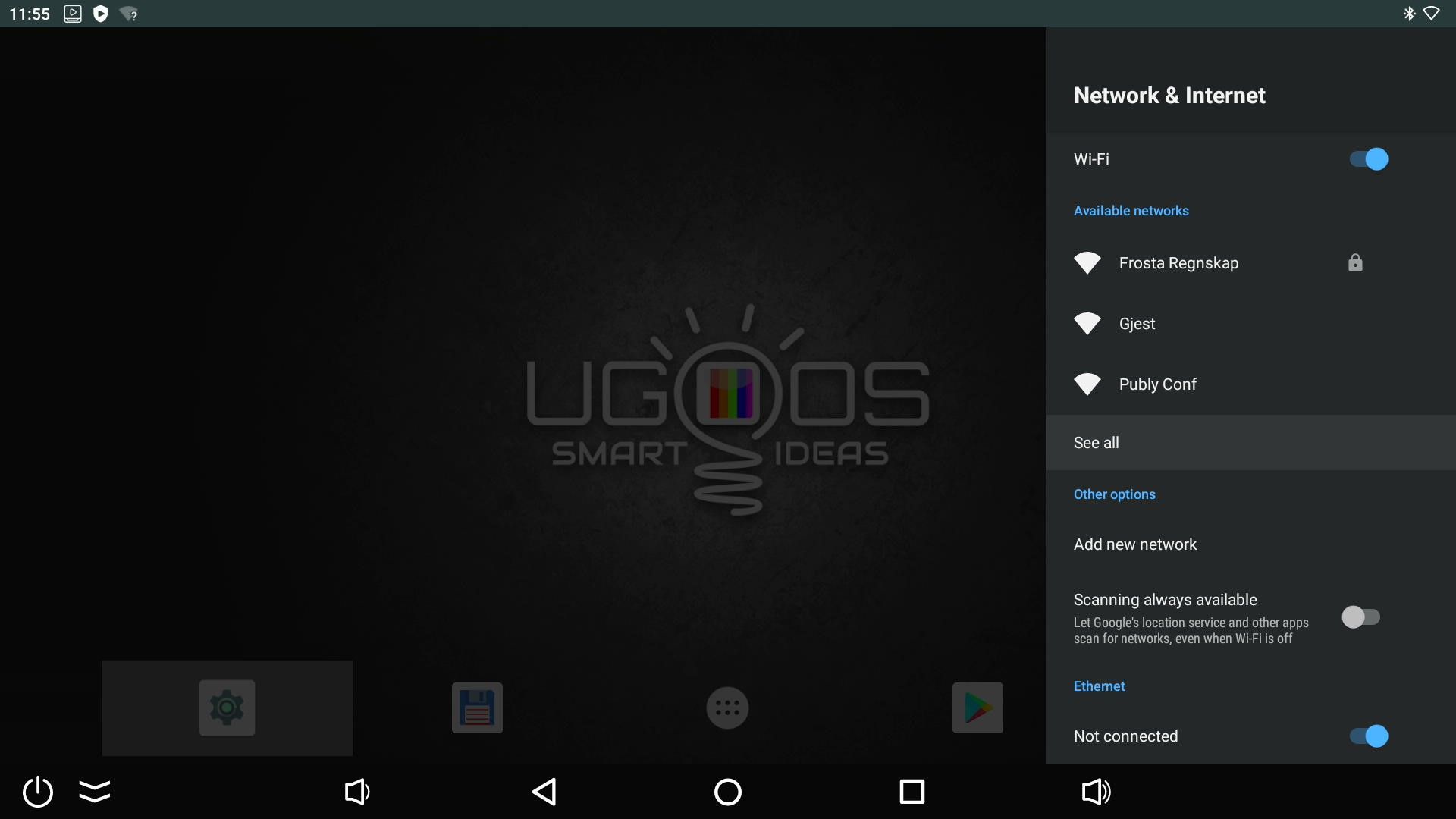
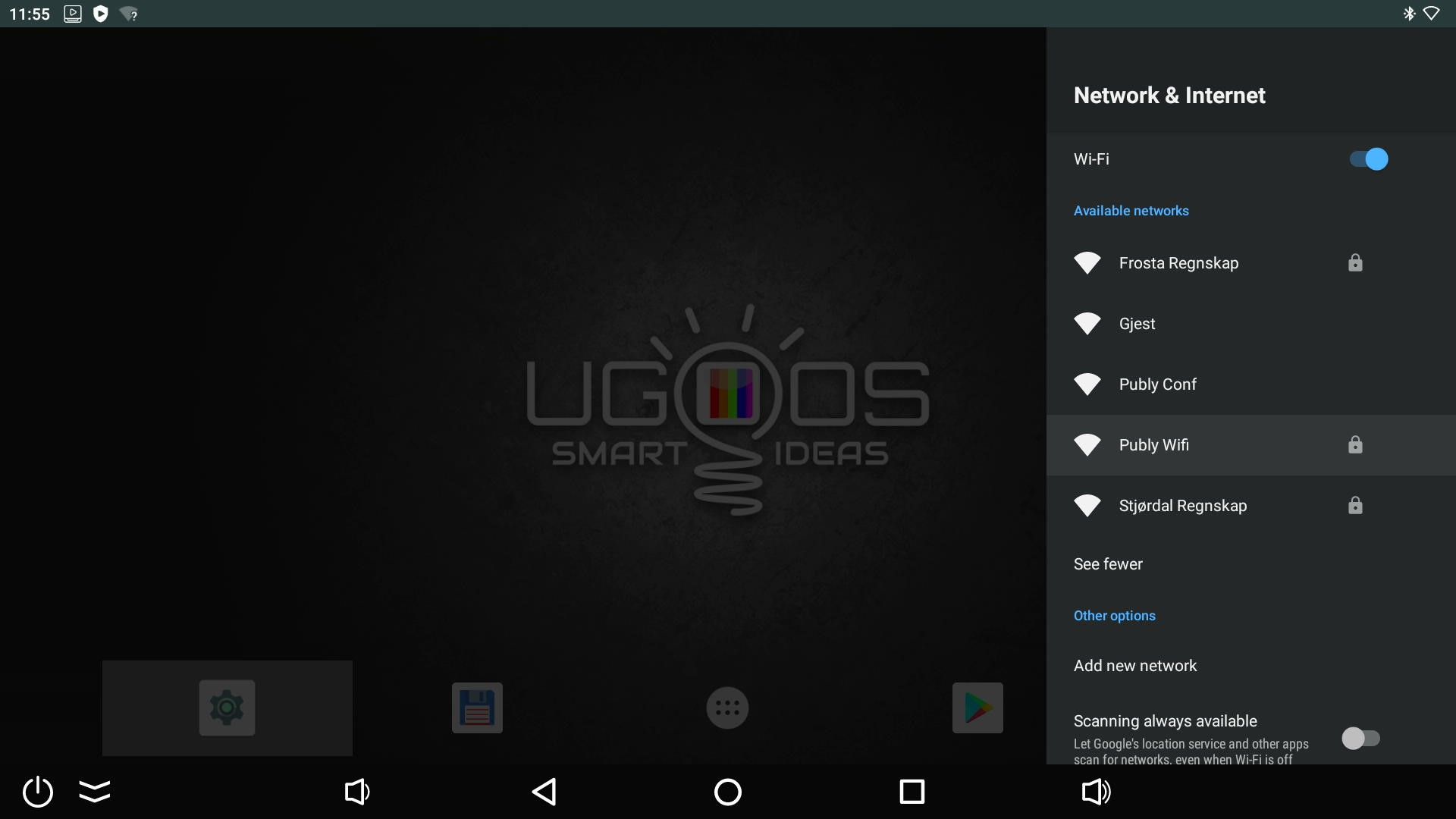
4.Find your Wi-Fi network

  • Select your network from the list.
    • If you don't see your network, press "See all" to display all available networks.

WIN_20241206_12_54_20_Pro.jpg

WIN_20241206_12_54_28_Pro.jpg

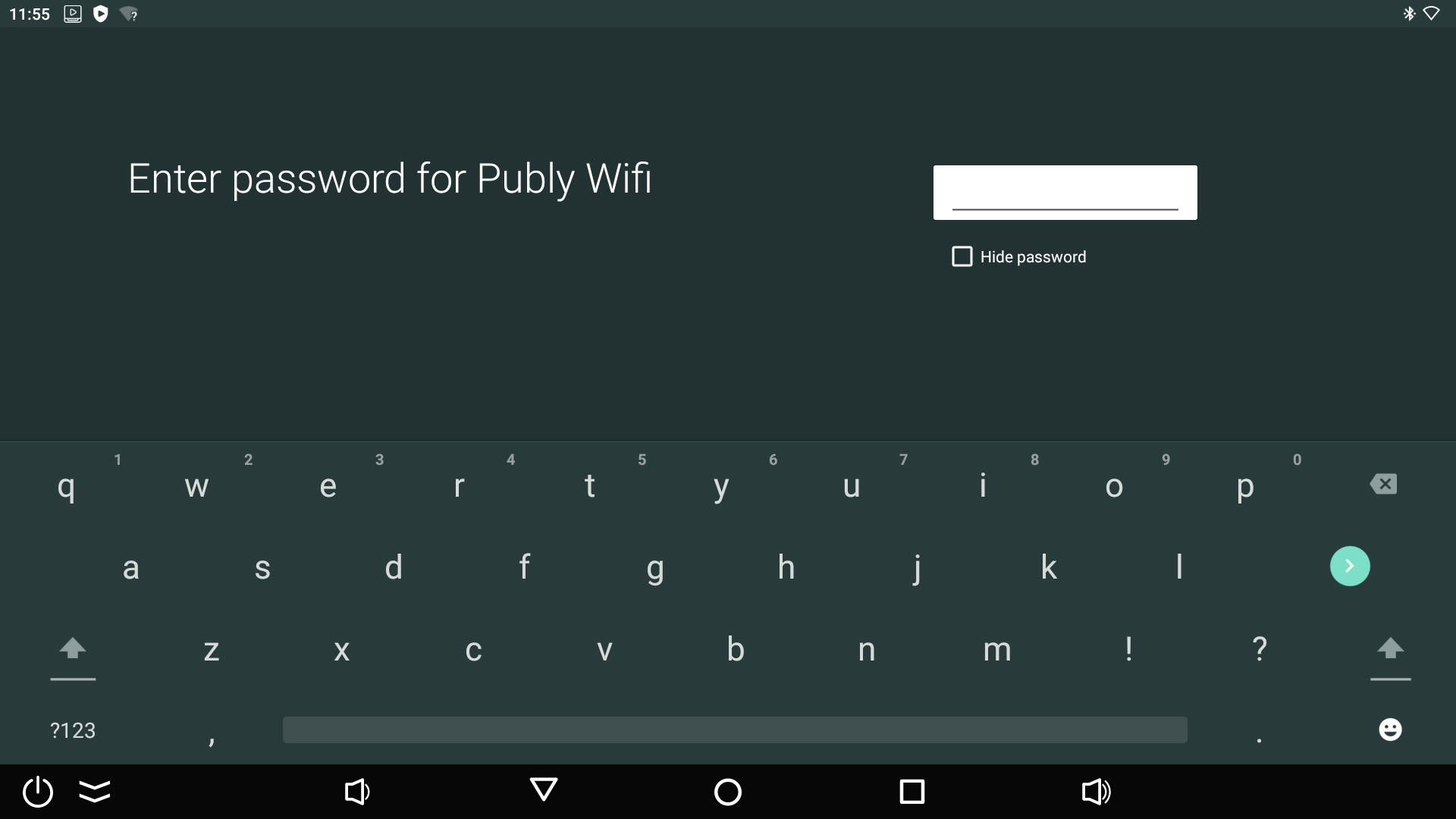
5. Enter the Wi-Fi password

  • Once you have selected the network, you will be prompted to enter the password.
    • Use the on-screen keyboard to type in the password.
  • When the password is entered, press the ">" icon on the on-screen keyboard to confirm.

WIN_20241206_12_54_31_Pro.jpg

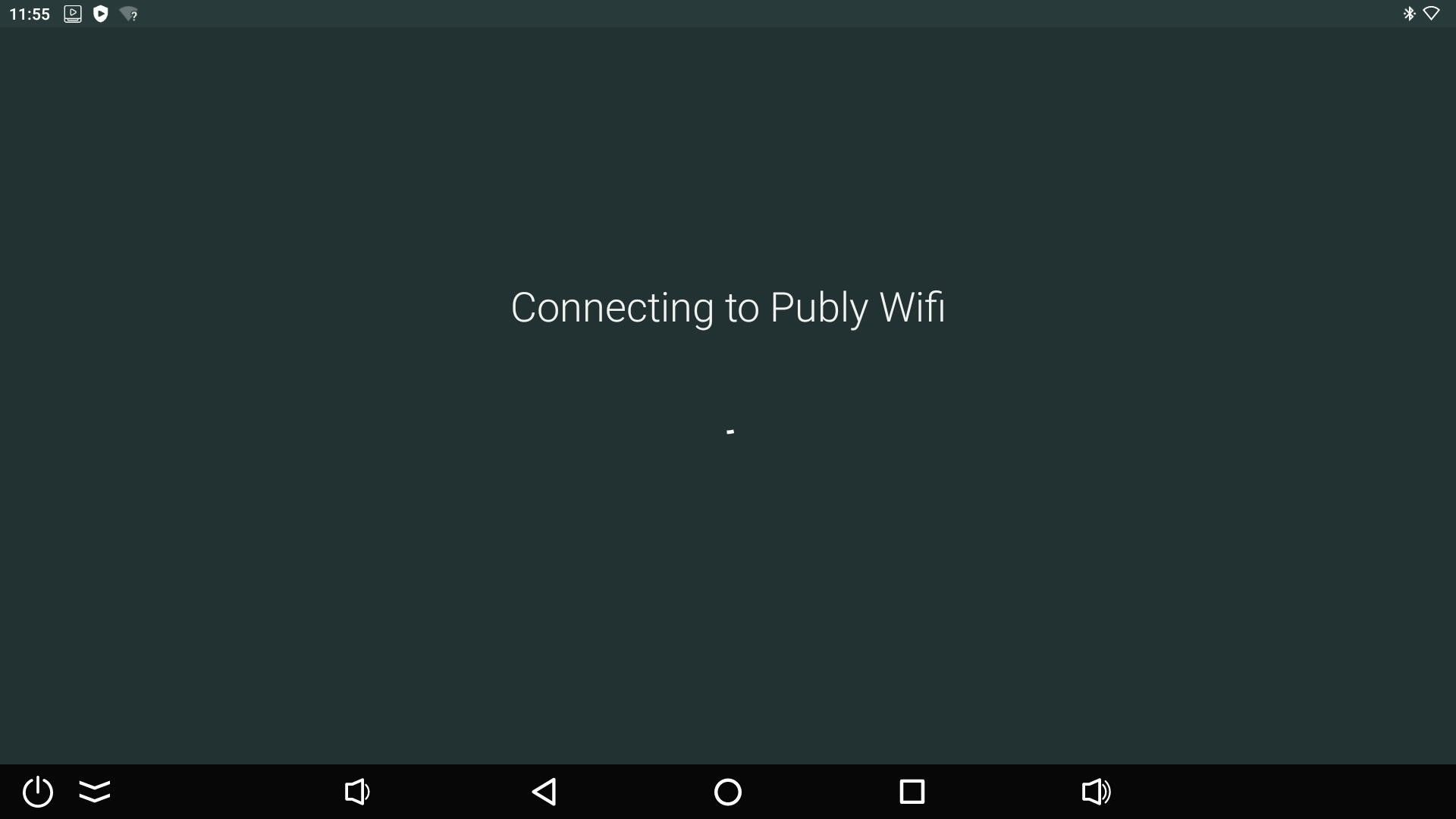
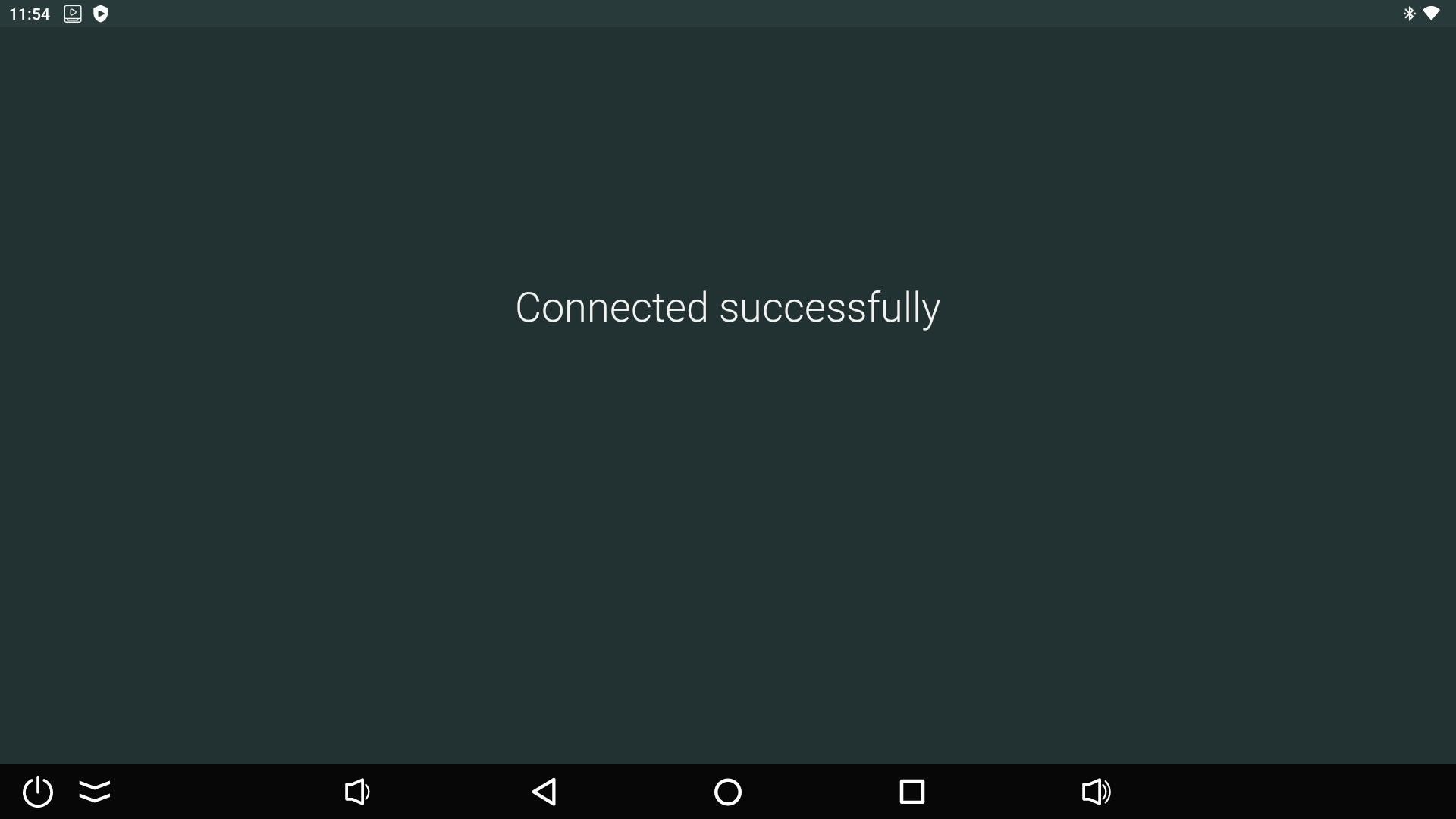
6.Confirm the connection

  • If the connection is successful, the message "Connected successfully" will appear.

WIN_20241206_12_54_55_Pro.jpg

WIN_20241206_12_54_57_Pro.jpg

7. Launch the Publy app

    • After connecting, you can:
      • Find the Publy app in the overview under "Apps".
      • Or restart the device so that Publy opens automatically.

You are now ready to use your device! 🎉
How to connect Ugoos X4Q to Wifi

Publisert: 16th December 2025 (Oppdatert: 16th December 2025)

This guide will help you connect the Ugoos X4Q to your Wi-Fi network. Follow the steps below:

  1. Go to the Home screen

    • Press the Home button on the remote control to navigate to the home screen.

WIN_20241206_12_54_06_Pro.jpg

2. Open Settings

  • Scroll down to the "Settings" icon and select it by pressing OK.

WIN_20241206_12_54_11_Pro.jpg

3. Go to Network settings

  • Select "Network & Internet" from the menu.

WIN_20241206_12_54_15_Pro.jpg

4.Find your Wi-Fi network

  • Select your network from the list.
    • If you don't see your network, press "See all" to display all available networks.

WIN_20241206_12_54_20_Pro.jpg

WIN_20241206_12_54_28_Pro.jpg

5. Enter the Wi-Fi password

  • Once you have selected the network, you will be prompted to enter the password.
    • Use the on-screen keyboard to type in the password.
  • When the password is entered, press the ">" icon on the on-screen keyboard to confirm.

WIN_20241206_12_54_31_Pro.jpg

6.Confirm the connection

  • If the connection is successful, the message "Connected successfully" will appear.

WIN_20241206_12_54_55_Pro.jpg

WIN_20241206_12_54_57_Pro.jpg

7. Launch the Publy app

    • After connecting, you can:
      • Find the Publy app in the overview under "Apps".
      • Or restart the device so that Publy opens automatically.

You are now ready to use your device! 🎉
How to connect Ugoos X4Q to Wifi

Publisert: 16th December 2025 (Oppdatert: 16th December 2025)

Android

Hardware

Startup

This guide will help you connect the Ugoos X4Q to your Wi-Fi network. Follow the steps below:

  1. Go to the Home screen

    • Press the Home button on the remote control to navigate to the home screen.

WIN_20241206_12_54_06_Pro.jpg

2. Open Settings

  • Scroll down to the "Settings" icon and select it by pressing OK.

WIN_20241206_12_54_11_Pro.jpg

3. Go to Network settings

  • Select "Network & Internet" from the menu.

WIN_20241206_12_54_15_Pro.jpg

4.Find your Wi-Fi network

  • Select your network from the list.
    • If you don't see your network, press "See all" to display all available networks.

WIN_20241206_12_54_20_Pro.jpg

WIN_20241206_12_54_28_Pro.jpg

5. Enter the Wi-Fi password

  • Once you have selected the network, you will be prompted to enter the password.
    • Use the on-screen keyboard to type in the password.
  • When the password is entered, press the ">" icon on the on-screen keyboard to confirm.

WIN_20241206_12_54_31_Pro.jpg

6.Confirm the connection

  • If the connection is successful, the message "Connected successfully" will appear.

WIN_20241206_12_54_55_Pro.jpg

WIN_20241206_12_54_57_Pro.jpg

7. Launch the Publy app

    • After connecting, you can:
      • Find the Publy app in the overview under "Apps".
      • Or restart the device so that Publy opens automatically.

You are now ready to use your device! 🎉

Skriv ut
Skriv ut (uten bilde)

Relaterte artikler

Android

Les mer
Post Image