
Publy Logo
Publy Logo

Setting up Publy on Tizen 7

Publisert: 10th January 2024 (Oppdatert: 16th December 2025)

Samsung

Getting Started

Startup

Here is a guide on how to set up Publy on a Tizen 7 Samsung screen.

NB! If you have several screens hanging next to each other, it is important that you stand as close to the screen you are going to set up as possible, as all Samsung screens use the same remote control.

When you turn on the screen, you should see the following image:

AF0873E9-7AF8-4C31-AF83-965A3AA45AD7_1_102_o.jpeg

If you do not see this screen, you must open settings -> System -> Start setup

Press ok to select English language (When "Hi!" is selected).

You will then be taken to the network selection screen. Here you select your network and enter the password. If you have wired internet, plug the cable into the screen.

AAF42E43-7666-4853-A0B0-C4BCD7BCCE22_1_102_o.jpeg

44D6462A-FEDF-45F4-B3E0-DD75B456461C_1_102_o.jpeg

68D7922E-1038-4A16-A874-2BB50855AD4E_1_102_o.jpeg

After the network is set up, you must accept terms from Samsung

1CCF527D-9BC2-4EFE-8F46-60E36CBC572E_1_102_o.jpeg

After you have accepted the terms, you will be presented with a choice of which type of installation you want to use, here you choose "Manual Setup"

00B4A1A2-6886-440A-8475-1222F20582DA_1_102_o.jpeg

After you have selected the installation type, you come to "Display Orientation". Here you choose whether the screen should be portrait or landscape

65FA96BB-10D1-46F9-92C9-FA4BC4BF9313_1_102_o.jpeg

When you have chosen the display orientation, you get "Player Selection". Here you select "Custom App"

50682FC9-26BB-43D4-A110-EFAB4B3991FB_1_102_o.jpeg

Then you get a choice to enter a url. Here you enter: https://app.publy.no/apps/tizen

7A6E1117-32D7-44B3-8F9B-A5B3763574FF_1_102_o.jpeg

Once you've pressed "Go", you can press the right arrow to continue (If it doesn't go there by itself).

On the next screen, you bring up the "Connect to RM Server" option. Here you press "Skip"

A18A714A-83FF-4C16-9B54-442561A8A989_1_102_o.jpeg

On the next screen, you will see the option for "Auto Power Off". Here we recommend selecting "Off". Otherwise, the screen will automatically turn off after 4 hours. You can set up your own on/off timer after the installation is complete.

On the next screen, you must check that the date and time are correct. If this is not correct then the screen will not work correctly. If it is set incorrectly, you can easily change it here

AF9A8FCC-3763-4D05-92F1-84ABB2F722D6_1_102_o.jpeg

After you have set the date and time, you get the choice to set a pin code, this is the code that is used if you have to change something on the screen later, so it is important that you remember this code. You can press the right arrow to skip this step. Then the code will be: 000000

01A2B35D-D927-47D8-BE9A-326EF64544D3_1_102_o.jpeg

When you move on from this screen, you will arrive at the home screen of the Samsung. Here you select "Custom App" and Publy will be installed and opened. After the app has been installed, you will see a 4-digit code on the screen.

F5AD391D-ADFB-4AEE-8768-D54487ED2F31_1_102_o.jpeg

You use this code at https://app.publy.no fo link the screen to your account


To set up the auto on/off timer you can follow this article:

Hvordan sette opp on/off timer på Tizen 7

Setting up Publy on Tizen 7

Publisert: 10th January 2024 (Oppdatert: 16th December 2025)

Here is a guide on how to set up Publy on a Tizen 7 Samsung screen.

NB! If you have several screens hanging next to each other, it is important that you stand as close to the screen you are going to set up as possible, as all Samsung screens use the same remote control.

When you turn on the screen, you should see the following image:

AF0873E9-7AF8-4C31-AF83-965A3AA45AD7_1_102_o.jpeg

If you do not see this screen, you must open settings -> System -> Start setup

Press ok to select English language (When "Hi!" is selected).

You will then be taken to the network selection screen. Here you select your network and enter the password. If you have wired internet, plug the cable into the screen.

AAF42E43-7666-4853-A0B0-C4BCD7BCCE22_1_102_o.jpeg

44D6462A-FEDF-45F4-B3E0-DD75B456461C_1_102_o.jpeg

68D7922E-1038-4A16-A874-2BB50855AD4E_1_102_o.jpeg

After the network is set up, you must accept terms from Samsung

1CCF527D-9BC2-4EFE-8F46-60E36CBC572E_1_102_o.jpeg

After you have accepted the terms, you will be presented with a choice of which type of installation you want to use, here you choose "Manual Setup"

00B4A1A2-6886-440A-8475-1222F20582DA_1_102_o.jpeg

After you have selected the installation type, you come to "Display Orientation". Here you choose whether the screen should be portrait or landscape

65FA96BB-10D1-46F9-92C9-FA4BC4BF9313_1_102_o.jpeg

When you have chosen the display orientation, you get "Player Selection". Here you select "Custom App"

50682FC9-26BB-43D4-A110-EFAB4B3991FB_1_102_o.jpeg

Then you get a choice to enter a url. Here you enter: https://app.publy.no/apps/tizen

7A6E1117-32D7-44B3-8F9B-A5B3763574FF_1_102_o.jpeg

Once you've pressed "Go", you can press the right arrow to continue (If it doesn't go there by itself).

On the next screen, you bring up the "Connect to RM Server" option. Here you press "Skip"
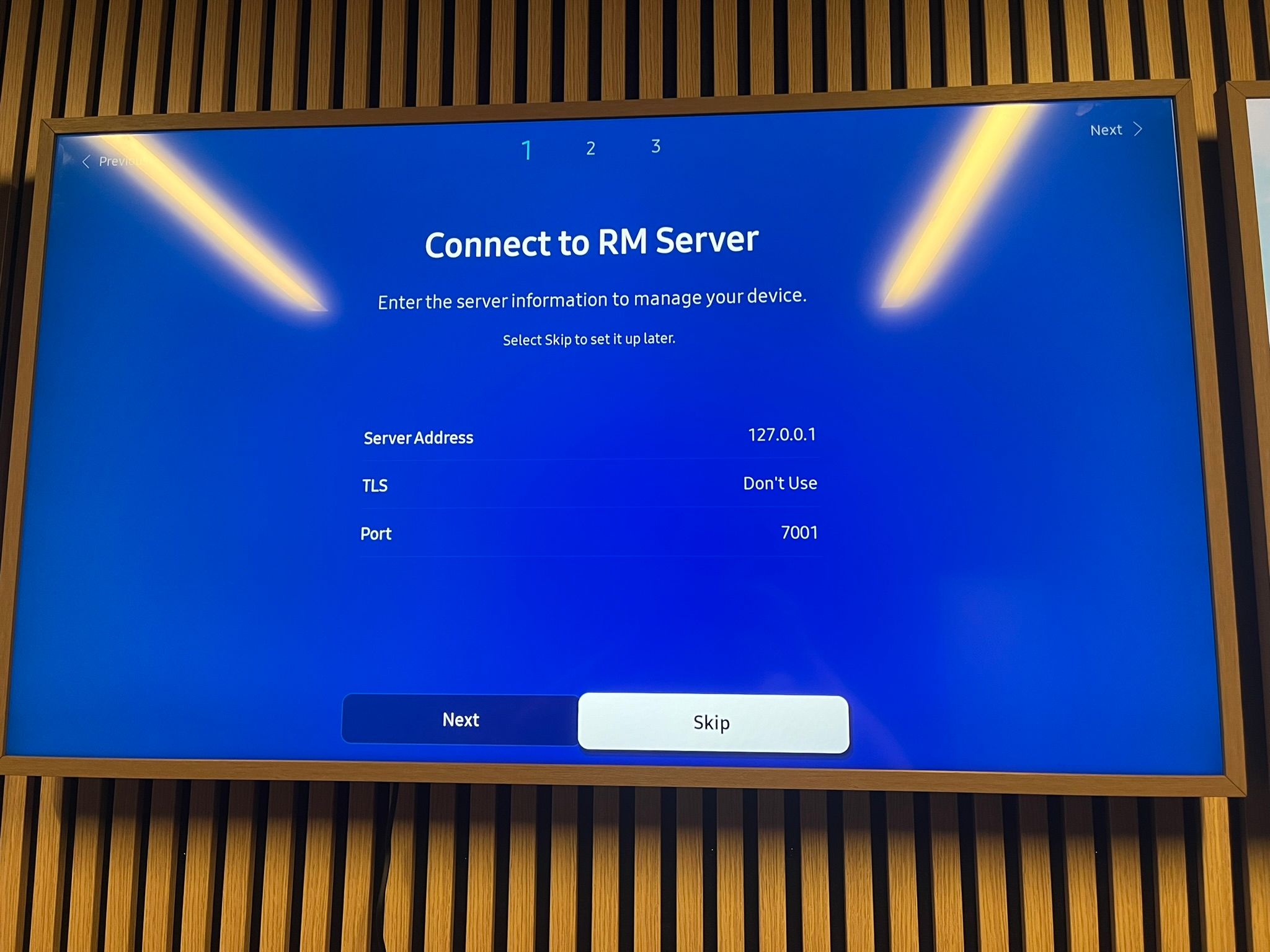
A18A714A-83FF-4C16-9B54-442561A8A989_1_102_o.jpeg

On the next screen, you will see the option for "Auto Power Off". Here we recommend selecting "Off". Otherwise, the screen will automatically turn off after 4 hours. You can set up your own on/off timer after the installation is complete.

On the next screen, you must check that the date and time are correct. If this is not correct then the screen will not work correctly. If it is set incorrectly, you can easily change it here

AF9A8FCC-3763-4D05-92F1-84ABB2F722D6_1_102_o.jpeg

After you have set the date and time, you get the choice to set a pin code, this is the code that is used if you have to change something on the screen later, so it is important that you remember this code. You can press the right arrow to skip this step. Then the code will be: 000000

01A2B35D-D927-47D8-BE9A-326EF64544D3_1_102_o.jpeg

When you move on from this screen, you will arrive at the home screen of the Samsung. Here you select "Custom App" and Publy will be installed and opened. After the app has been installed, you will see a 4-digit code on the screen.

F5AD391D-ADFB-4AEE-8768-D54487ED2F31_1_102_o.jpeg

You use this code at https://app.publy.no fo link the screen to your account


To set up the auto on/off timer you can follow this article:
Hvordan sette opp on/off timer på Tizen 7

Setting up Publy on Tizen 7

Publisert: 10th January 2024 (Oppdatert: 16th December 2025)

Samsung

Getting Started

Startup

Here is a guide on how to set up Publy on a Tizen 7 Samsung screen.

NB! If you have several screens hanging next to each other, it is important that you stand as close to the screen you are going to set up as possible, as all Samsung screens use the same remote control.

When you turn on the screen, you should see the following image:

AF0873E9-7AF8-4C31-AF83-965A3AA45AD7_1_102_o.jpeg

If you do not see this screen, you must open settings -> System -> Start setup

Press ok to select English language (When "Hi!" is selected).

You will then be taken to the network selection screen. Here you select your network and enter the password. If you have wired internet, plug the cable into the screen.

AAF42E43-7666-4853-A0B0-C4BCD7BCCE22_1_102_o.jpeg

44D6462A-FEDF-45F4-B3E0-DD75B456461C_1_102_o.jpeg

68D7922E-1038-4A16-A874-2BB50855AD4E_1_102_o.jpeg

After the network is set up, you must accept terms from Samsung

1CCF527D-9BC2-4EFE-8F46-60E36CBC572E_1_102_o.jpeg

After you have accepted the terms, you will be presented with a choice of which type of installation you want to use, here you choose "Manual Setup"

00B4A1A2-6886-440A-8475-1222F20582DA_1_102_o.jpeg

After you have selected the installation type, you come to "Display Orientation". Here you choose whether the screen should be portrait or landscape

65FA96BB-10D1-46F9-92C9-FA4BC4BF9313_1_102_o.jpeg

When you have chosen the display orientation, you get "Player Selection". Here you select "Custom App"

50682FC9-26BB-43D4-A110-EFAB4B3991FB_1_102_o.jpeg

Then you get a choice to enter a url. Here you enter: https://app.publy.no/apps/tizen

7A6E1117-32D7-44B3-8F9B-A5B3763574FF_1_102_o.jpeg

Once you've pressed "Go", you can press the right arrow to continue (If it doesn't go there by itself).

On the next screen, you bring up the "Connect to RM Server" option. Here you press "Skip"

A18A714A-83FF-4C16-9B54-442561A8A989_1_102_o.jpeg

On the next screen, you will see the option for "Auto Power Off". Here we recommend selecting "Off". Otherwise, the screen will automatically turn off after 4 hours. You can set up your own on/off timer after the installation is complete.

On the next screen, you must check that the date and time are correct. If this is not correct then the screen will not work correctly. If it is set incorrectly, you can easily change it here

AF9A8FCC-3763-4D05-92F1-84ABB2F722D6_1_102_o.jpeg

After you have set the date and time, you get the choice to set a pin code, this is the code that is used if you have to change something on the screen later, so it is important that you remember this code. You can press the right arrow to skip this step. Then the code will be: 000000

01A2B35D-D927-47D8-BE9A-326EF64544D3_1_102_o.jpeg

When you move on from this screen, you will arrive at the home screen of the Samsung. Here you select "Custom App" and Publy will be installed and opened. After the app has been installed, you will see a 4-digit code on the screen.

F5AD391D-ADFB-4AEE-8768-D54487ED2F31_1_102_o.jpeg

You use this code at https://app.publy.no fo link the screen to your account


To set up the auto on/off timer you can follow this article:
Hvordan sette opp on/off timer på Tizen 7

Skriv ut
Skriv ut (uten bilde)

Relaterte artikler

Android

Les mer
Post Image