
Publy Logo
Publy Logo

Sony Setup

Publisert: 16th December 2025 (Oppdatert: 16th December 2025)

Android

This guide applies to the following Sony models:

  • BZ30L
  • BZ30J (With the latest firmware)
  • BZ40L
  • BZ35L
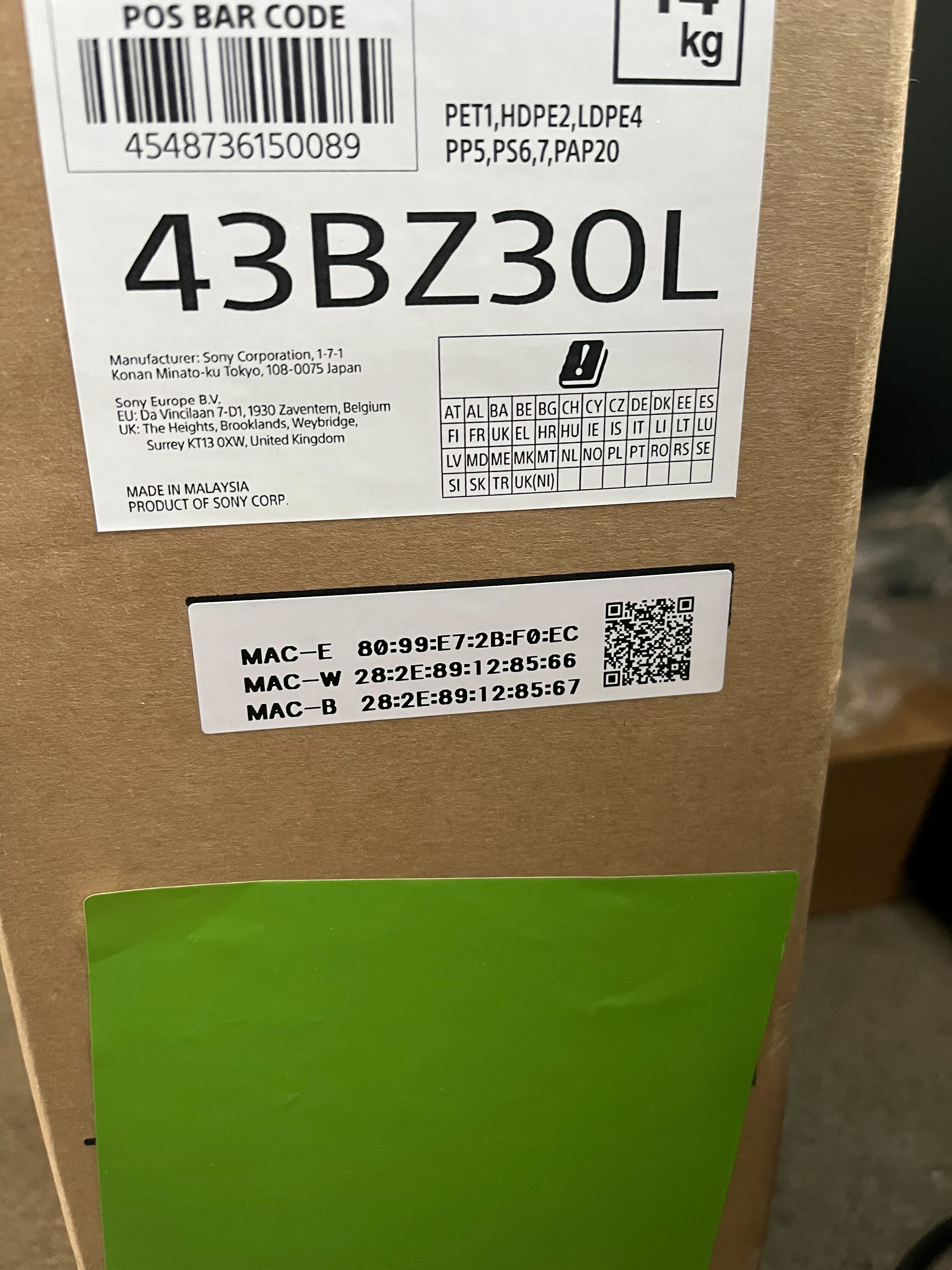
  1. Locate the MAC address that came with the screen. It should be printed on the box the screen arrived in. If the box is not available, you can find the MAC address on the back of the screen. The MAC address you need is MAC-E, as indicated in the image. Remember to note down the MAC address and send it to us at [email protected]
 IMG_5024_0ced8764dd.jpg

  1. If the screen has not been set up yet, follow this step; if it has already been set up, skip directly to step 4.


  1. Go to Settings → System → About → Reset → Factory data reset → Erase everything.


  1. After resetting the TV, you will arrive at the Welcome screen. Select English as the language (you can change the language later in the settings).


  1. On “Quickly set up your TV with your Android phone”, press Skip.


  1. On “Select your WiFi network”, choose the Wi-Fi network you want to use.


  1. After connecting, you should see “Connected Successfully”.


  1. On “Make the most out of your TV”, turn the TV off and on again.


  1. After turning the TV back on, a QR code will appear. Call us at +47 66 33 33 and we will assist you further.
 

Sony Setup

Publisert: 16th December 2025 (Oppdatert: 16th December 2025)

This guide applies to the following Sony models:

  • BZ30L
  • BZ30J (With the latest firmware)
  • BZ40L
  • BZ35L
  1. Locate the MAC address that came with the screen. It should be printed on the box the screen arrived in. If the box is not available, you can find the MAC address on the back of the screen. The MAC address you need is MAC-E, as indicated in the image. Remember to note down the MAC address and send it to us at [email protected]

 IMG_5024_0ced8764dd.jpg

  1. If the screen has not been set up yet, follow this step; if it has already been set up, skip directly to step 4.


  1. Go to Settings → System → About → Reset → Factory data reset → Erase everything.


  1. After resetting the TV, you will arrive at the Welcome screen. Select English as the language (you can change the language later in the settings).


  1. On “Quickly set up your TV with your Android phone”, press Skip.


  1. On “Select your WiFi network”, choose the Wi-Fi network you want to use.


  1. After connecting, you should see “Connected Successfully”.


  1. On “Make the most out of your TV”, turn the TV off and on again.


  1. After turning the TV back on, a QR code will appear. Call us at +47 66 33 33 and we will assist you further.
 

Sony Setup

Publisert: 16th December 2025 (Oppdatert: 16th December 2025)

Android

This guide applies to the following Sony models:

  • BZ30L
  • BZ30J (With the latest firmware)
  • BZ40L
  • BZ35L
  1. Locate the MAC address that came with the screen. It should be printed on the box the screen arrived in. If the box is not available, you can find the MAC address on the back of the screen. The MAC address you need is MAC-E, as indicated in the image. Remember to note down the MAC address and send it to us at [email protected]

 IMG_5024_0ced8764dd.jpg

  1. If the screen has not been set up yet, follow this step; if it has already been set up, skip directly to step 4.


  1. Go to Settings → System → About → Reset → Factory data reset → Erase everything.


  1. After resetting the TV, you will arrive at the Welcome screen. Select English as the language (you can change the language later in the settings).


  1. On “Quickly set up your TV with your Android phone”, press Skip.


  1. On “Select your WiFi network”, choose the Wi-Fi network you want to use.


  1. After connecting, you should see “Connected Successfully”.


  1. On “Make the most out of your TV”, turn the TV off and on again.


  1. After turning the TV back on, a QR code will appear. Call us at +47 66 33 33 and we will assist you further.


Skriv ut
Skriv ut (uten bilde)

Relaterte artikler

Android

Les mer
Post Image